Tutorial 8 of 8
Team workspaces
Intermediate 6 min
Save your Agentlab project to a shared workspace, share it with roles, follow teammates’ changes live and leave comments. Optional and free.
What a workspace is
Agentlab works without an account. A workspace is an optional shared place on usefulweb.site: you sign in with a passkey or Google, invite people with a role and save projects there. Everyone with access sees the same project — its checks, runs, gates and notes — and changes arrive live.
Save a project to a workspace
- Open the project you want to share.
- Choose File → Save to workspace…. If you are not signed in yet, Agentlab asks you to sign in or to create an account with a passkey.
- Pick a workspace (or create one), check the title and press Save.
From now on every change is saved to the workspace a moment after you make it. The chip in the status bar shows the workspace, whether your last change is saved and who else has the same project open.
Open it on a second account
Teammates choose File → Open from workspace… and pick the project, or open the direct link from Share and permissions… (it ends in #teamdoc= and a document id). When you reopen Agentlab later, the project you last opened from a workspace opens again.
Roles and read-only access
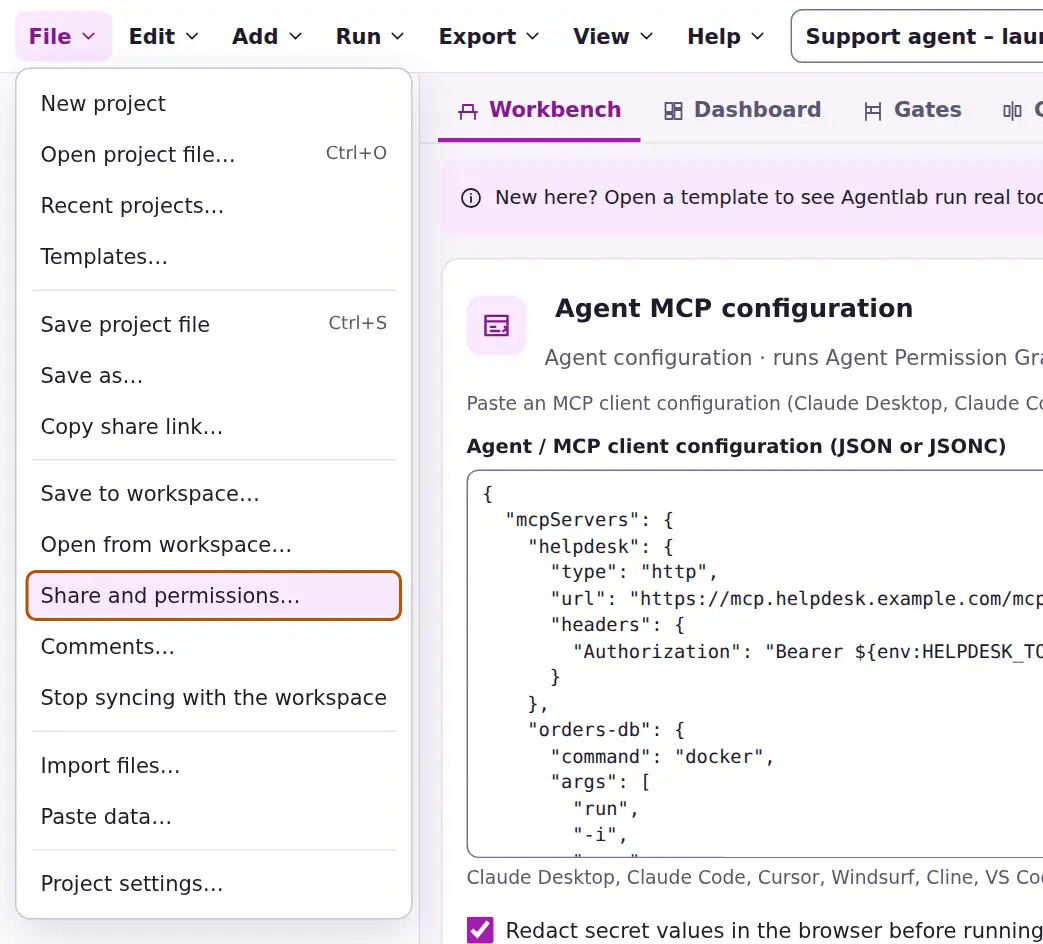
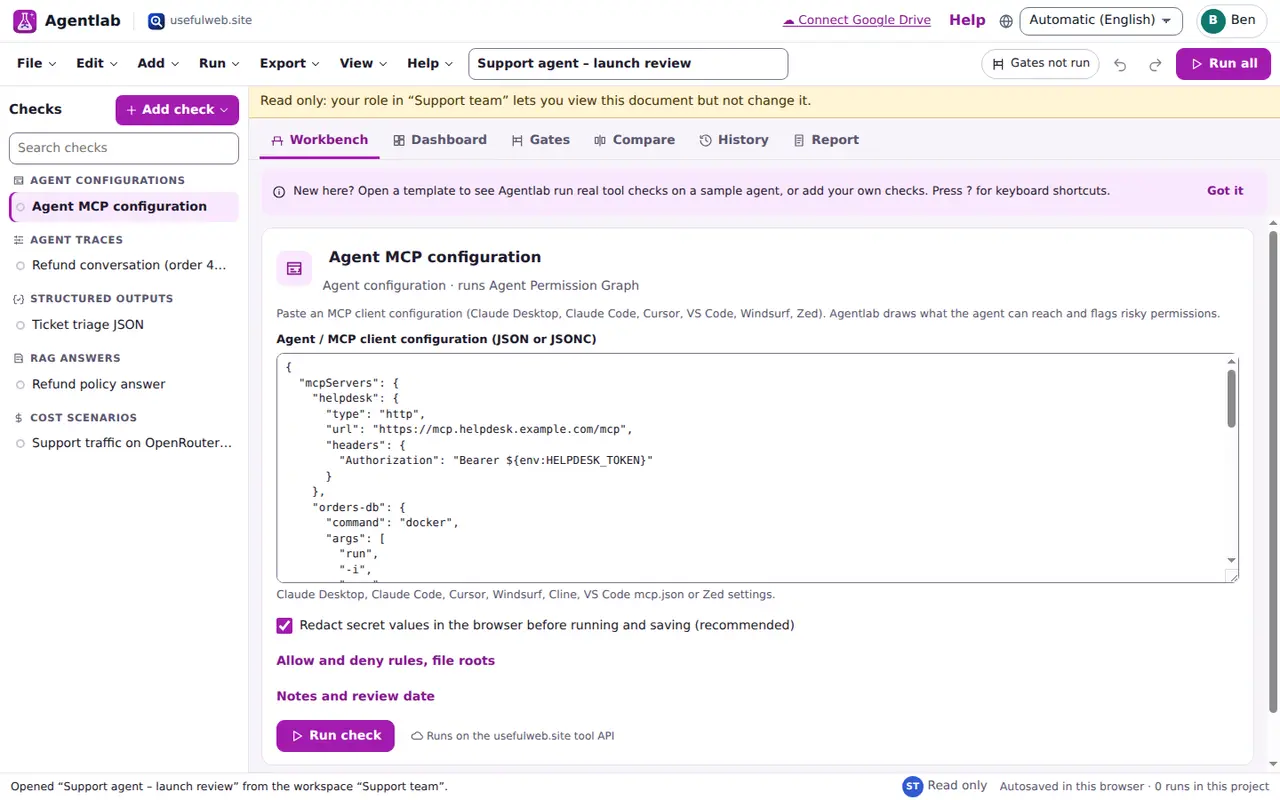
File → Share and permissions… lists the members with their roles, creates invite links and sets access rules for this one project. Owners, admins and members can edit; viewers can only read. For a viewer Agentlab shows a yellow read-only note above the project, the chip says Read only, text fields cannot be changed and every action that would change the project — editing, running checks, undo — is refused with a message. Viewers can still switch tabs, filter, export and print.
Live changes and conflicts
When a teammate saves, their version loads in your tab automatically and the status line says who changed it. If you were changing the same project at that moment, Agentlab asks what to do: load their version, keep yours and overwrite theirs, or save yours as a copy.
Comments
File → Comments… shows the comments on the project and lets members add one — for example a reminder to re-run the gates before launch. Viewers can read the comments.
What is stored in the workspace
The workspace keeps the whole project: every check with its pasted configuration, transcript or eval data, the run history and the gates. Files you import are read into the checks as text, so nothing else is needed on the other side.
Stop syncing
File → Stop syncing with the workspace ends the link: your copy stays in this browser and the shared version stays in the workspace. Opening another project (new, template, file or recent) also stops syncing, so the shared project is never overwritten by accident.
Ready to try it?